

What Is Google Classroom?
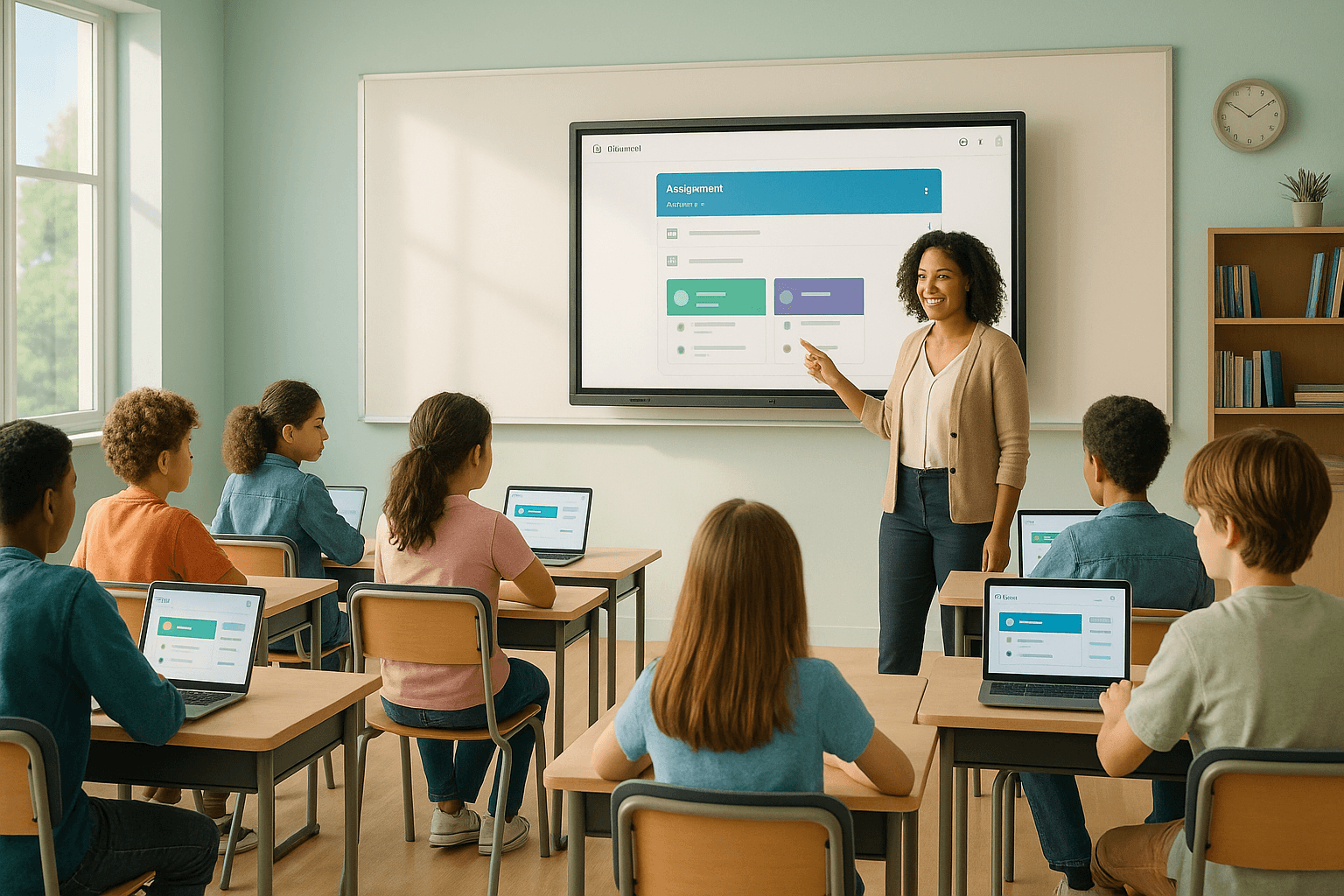
Google Classroom is a free, web-based learning management system developed by Google for Schools. It allows teachers to create, distribute, and grade assignments entirely online. Students access coursework, submit work, and communicate with teachers — all in one organized digital space. Parents can receive guardian summaries to stay informed about their child's progress.
Available through Google Workspace for Education, it works on any device with a browser. Schools do not need special hardware or software to get started.
Why Google Classroom Has Become a Classroom Standard
Millions of teachers worldwide now use Google Classroom as their primary instructional hub. That adoption did not happen by accident.
Before tools like this existed, teachers juggled paper handouts, email chains, and disconnected apps. Google Classroom pulled those pieces into one place. It reduced administrative friction so teachers could focus on what matters — actual teaching.
Research consistently shows that when teachers spend less time on logistics, they have more capacity for meaningful student interaction. Google Classroom directly supports that shift.
It also integrates natively with Google Docs, Slides, Forms, Meet, and Drive — tools many students already use. That familiarity lowers the learning curve significantly.
How to Set Up Google Classroom as a Teacher
Getting started takes less time than most teachers expect. Here is the core setup process.
Creating Your First Class in Google Classroom
Sign in at classroom.google.com using your school Google account. Click the plus icon in the top right corner and select "Create class." You will name the class, add a section, subject, and room number if needed.
Google will generate a unique class code automatically. Share that code with students so they can join. You can also invite students directly by email if your school's Google Workspace settings allow it.
Organizing Your Google Classroom Stream and Classwork
Google Classroom has two primary teacher-facing areas worth understanding early:
- The Stream — a social-style feed where announcements and activity appear
- The Classwork tab — where assignments, quizzes, materials, and topics live
Most experienced teachers recommend minimizing the Stream and doing the bulk of your instructional work in the Classwork tab. The Stream can become noisy. The Classwork tab keeps content structured and searchable.
Use Topics inside Classwork to organize by unit, week, or subject area. This makes navigation far easier for students — especially younger learners who need clear visual structure.
Creating and Distributing Assignments
Click "Create" in the Classwork tab to build an assignment. You can attach Google Docs, YouTube videos, links, or Drive files. Set due dates, assign point values, and even schedule posts in advance.
One of the most practical features here is the "Make a copy for each student" option. When you attach a Google Doc with this setting, every student gets their own editable version. You can then view and comment on each student's work in real time — without collecting a single paper.
According to Google's official Classroom Help Center, teachers can also reuse posts from previous classes, which saves significant time when teaching the same course across multiple periods or years. You can access Google's official teacher guidance at support.google.com/edu/classroom.
How to Use Google Classroom Effectively as a Teacher
Setup is just the beginning. Effective use requires intentional habits and a few strategies that experienced educators have refined over time.
Using Rubrics and Grading Tools in Google Classroom
Google Classroom includes a built-in rubric tool. Teachers can create criteria-based rubrics directly inside an assignment. When grading, you click the rubric scores and the platform calculates the total automatically.
This matters because rubric-based grading has strong research support. When students see clear criteria before they begin work, they produce higher-quality submissions. The rubric tool in Google Classroom makes this practice accessible without extra apps or spreadsheets.
Giving Feedback Through Private Comments and Inline Suggestions
Teachers can leave private comments on any assignment submission. For Google Docs specifically, you can insert inline comments directly on the student's text — the same way a thoughtful editor would mark up a draft.
This kind of specific, timely feedback is one of the highest-impact teaching practices identified in educational research. John Hattie's synthesis of over 800 meta-analyses consistently ranks feedback near the top of factors that influence student achievement. Google Classroom makes that feedback loop faster and more sustainable.
Scheduling Posts and Using Topics for Lesson Planning
Teachers often underuse the scheduling feature. You can build an entire week of content in advance and schedule each post to appear at a specific time. This supports consistent pacing and reduces day-of stress.
Pair this with a clear Topic structure — for example, "Week 3: Fractions" or "Unit 2: Civil War" — and students always know where to find what they need. That clarity reduces the number of "Where is the assignment?" questions significantly.
Using Google Forms for Quizzes and Exit Tickets
Google Forms integrates directly with Classroom. You can create a quiz inside Forms, assign it through Classroom, and have it auto-graded. Results flow into the Grades tab automatically.
Beyond formal quizzes, Forms works well for quick formative checks — exit tickets, bell ringers, or pre-assessments. These low-stakes checkpoints give teachers real data about student understanding without adding grading burden.
How Students Navigate Google Classroom
Students experience Google Classroom differently than teachers do. Understanding that experience helps teachers design better assignments and set clearer expectations.
Joining a Class and Finding Assignments
Students sign in at classroom.google.com with their school Google account. They join a class using the class code their teacher provides, or they accept an email invitation. Once inside, the Classwork tab shows all assigned work organized by topic.
Students can filter by status — to-do, done, or missing — which helps them prioritize. The To-Do list on the Classroom homepage also aggregates upcoming work across all classes in one view. For students managing multiple courses, this single-view feature reduces overwhelm.
Submitting Work and Tracking Grades
When a student opens an assignment, they see the instructions, any attached materials, and a place to add their work. They can attach a file, create a new Google Doc, or type directly into the assignment depending on how the teacher set it up.
After submitting, students can view their grade and teacher feedback in the same assignment window. This transparency supports student ownership of learning — a principle that appears consistently in self-determination theory research.
Google provides a dedicated student guide at support.google.com/edu/classroom with step-by-step instructions for common student tasks.
How Parents and Guardians Use Google Classroom
Parents do not log into Google Classroom directly as participants. Instead, Google offers a Guardian Email Summary feature that keeps families informed without giving them full account access.
Setting Up Guardian Summaries
Teachers or school administrators invite guardians by email from within the Classroom settings. Once a guardian accepts the invitation, they receive automatic email summaries — daily or weekly — that include:
- Missing work their student has not submitted
- Upcoming assignments and due dates
- Recent class activity
This feature respects student privacy while giving parents enough visibility to support their child at home. It also reduces the burden on teachers to individually communicate routine assignment information.
Google's official guardian guide is available at support.google.com/edu/classroom/answer/6388136.
What Parents Can and Cannot See
Guardian summaries show assignment names, due dates, and submission status. Parents do not see grades, private teacher comments, or other students' work. If parents want more detail, they should contact the teacher directly — the summary is designed to prompt those conversations, not replace them.
This boundary matters. It keeps the student at the center of the learning relationship while giving parents enough context to ask informed questions at home.
Google Classroom Features That Teachers Often Overlook
Even experienced users tend to underuse several features that can meaningfully improve classroom efficiency and student experience.
Originality Reports for Academic Integrity
Google Classroom includes an Originality Reports feature for eligible Google Workspace for Education accounts. When students submit a Google Doc assignment, the tool checks the text against web content and a school's own repository of past submissions.
This is not about catching students — it is about teaching them. When students can run their own originality check before submitting, they learn to identify unintentional plagiarism and revise accordingly. That process builds academic integrity skills rather than just enforcing rules.
Practice Sets and Interactive Assignments
Google has expanded Classroom to include Practice Sets — interactive assignments where teachers can embed hints, links, and skill tags into questions. Students receive immediate feedback as they work, and teachers get data on which skills need more attention.
This feature moves Google Classroom closer to adaptive learning territory. It is not a replacement for teacher judgment, but it does give students more independent practice opportunities with built-in scaffolding.
Co-Teacher Access and Collaboration
Teachers can add co-teachers to any class. Co-teachers have nearly full access — they can create assignments, grade work, and post announcements. This is valuable for co-teaching models, instructional coaches who support teachers, or student teachers learning the platform alongside a mentor.
Google Classroom for School Leaders and Administrators
School leaders often think of Google Classroom as a teacher tool. But its impact scales up to the institutional level when administrators engage with it strategically.
Using Google Workspace Admin Console with Classroom
School and district administrators manage Google Classroom settings through the Google Admin Console. They can control who can create classes, manage guardian access settings, and view usage data across the school.
This oversight capacity matters for school leaders who want to ensure consistent use of the platform across departments. It also supports data privacy compliance — a growing concern in K–12 education.
Google's administrator guide for Classroom is available at support.google.com/a/topic/25840.
Supporting Teachers with Professional Development on Google Classroom
Adoption without support leads to surface-level use. Teachers who receive structured professional development on Google Classroom use more of its features and use them more effectively.
Google offers free certification programs through Google for Education. The Google Certified Educator Level 1 and Level 2 programs include Classroom-specific training. School leaders who invest in these pathways see stronger, more consistent platform use across their staff.
Google Classroom vs. Other Learning Management Systems
Comparing tools honestly helps educators make informed decisions — not just default to whatever is already installed.
Google Classroom excels at simplicity, speed, and Google ecosystem integration. It is not a full-featured LMS in the way that Canvas or Schoology are. It does not include built-in gradebook exports to student information systems, advanced discussion boards, or complex course-building tools natively.
What it does offer is a low-barrier, highly accessible platform that most students and teachers can learn in a single session. For schools already using Google Workspace, it is often the most practical starting point — and for many, it is all they need.
The right question is not which platform is best in the abstract. It is which platform best serves your students, your teachers, and your school's specific instructional goals.
Common Google Classroom Questions and Practical Answers
Can Students Submit Late Work in Google Classroom?
Yes. Students can submit work after the due date unless the teacher has turned off late submissions. The assignment will be marked "Turned in late" so teachers can see the timing. Teachers can still grade and return late work normally.
Does Google Classroom Work Without the Internet?
Google Classroom requires internet access for most functions. However, Google Docs, Sheets, and Slides can be set to work offline through Chrome browser settings. Students can edit documents offline and changes sync when they reconnect. This is worth setting up in advance for students with unreliable home internet access.
Is Google Classroom Free?
Google Classroom is free for schools using Google Workspace for Education Fundamentals — the standard tier. Additional features like Practice Sets, advanced analytics, and enhanced security controls are available in paid tiers: Education Standard, Teaching and Learning Upgrade, and Education Plus. Most K–12 schools operate on the free tier and find it sufficient.
Full pricing and feature comparisons are available at edu.google.com/workspace-for-education/editions.
Making Google Classroom Work for Every Learner
Technology is only as equitable as the decisions made around it. Google Classroom has accessibility features worth knowing — and limitations worth acknowledging.
Google Docs, which integrates directly with Classroom, supports screen readers, voice typing, and adjustable text size. These features benefit students with visual impairments, dyslexia, or motor challenges. Teachers can also use the "Make a copy for each student" feature to differentiate assignments — attaching different versions of a document to different students without anyone knowing they received a different version.
The honest limitation is the device and internet access gap. Google Classroom assumes students have reliable access to a device and the internet. Where that assumption does not hold, the platform's benefits do not reach all students equally. School leaders must address the infrastructure gap alongside the platform adoption — one without the other leaves students behind.
Getting the Most Out of Google Classroom Over Time
The teachers who use Google Classroom most effectively are not necessarily the most tech-savvy. They are the ones who treat it as a living system — refining their setup each semester, asking students for feedback on how it feels to navigate, and staying curious about features they have not tried yet.
Start simple. Master one feature at a time. Let your students' experience guide your next step. That approach — patient, reflective, student-centered — is exactly how good teaching works, with or without technology.
Google Classroom is a tool. What you do with it depends on the questions you bring to your classroom every day.